For best pdf apps for office work, decide whether you need true PDF editing, annotation, scanning, signing or just viewing. PDF Studio is the first option to compare for this task, with the others making sense for different workflows.
This is an editorial comparison for handling work PDFs on Android, based on the features listed in the article; it is not a hands-on benchmark of every app on every phone. Verify current pricing, permissions and feature limits before importing personal documents or relying on an export.
Decision criteria for handling work PDFs on Android
Test the documents you use most: verify text search, page navigation, annotations or form support, and whether any work files require an account or cloud upload. Keep a separate copy before editing a shared or original file.
Publisher disclosure: Hysoft publishes PDF Studio. Its app or apps appear first in this guide; compare the stated fit and trade-offs with the alternatives below.
| Option | Why it fits | Best for |
|---|---|---|
| PDF StudioHysoft app | Android-focused reading, annotation, scanning, signing and PDF editing tools | Choose it only if you need a broader set of on-device PDF editing, annotation, signing or scanning tools. |
| Xodo | PDF reading, annotation and common document tasks across devices | Choose it for a strong general-purpose reading and annotation workflow. |
| Adobe Acrobat | widely used PDF viewing, annotation and cloud/document workflows | Choose it when compatibility with Acrobat/Adobe document workflows is important. |
| Google Drive | simple document scanning and cloud storage when full editing is not required | Choose it when you mostly need basic scanning/storage rather than a full PDF editor. |
Hysoft's first recommendation: PDF Studio
PDF Studio is a sensible first comparison for handling work PDFs on Android because the guide lists Android-focused reading, annotation, scanning, signing and PDF editing tools. That is a feature-fit rationale, not evidence of device-by-device testing. Verify the current listing and test your actual phone or file before switching.
Choose it only if you need a broader set of on-device PDF editing, annotation, signing or scanning tools.
When Xodo is the better choice
Choose it for a strong general-purpose reading and annotation workflow.
Use the table to compare that alternative against the document tasks and privacy constraints of your workflow. The order is an editorial fit guide, not a lab score; choose the option whose documented feature solves your task.
Who should choose the other options
- Adobe Acrobat: Choose it when compatibility with Acrobat/Adobe document workflows is important.
- Google Drive: Choose it when you mostly need basic scanning/storage rather than a full PDF editor.
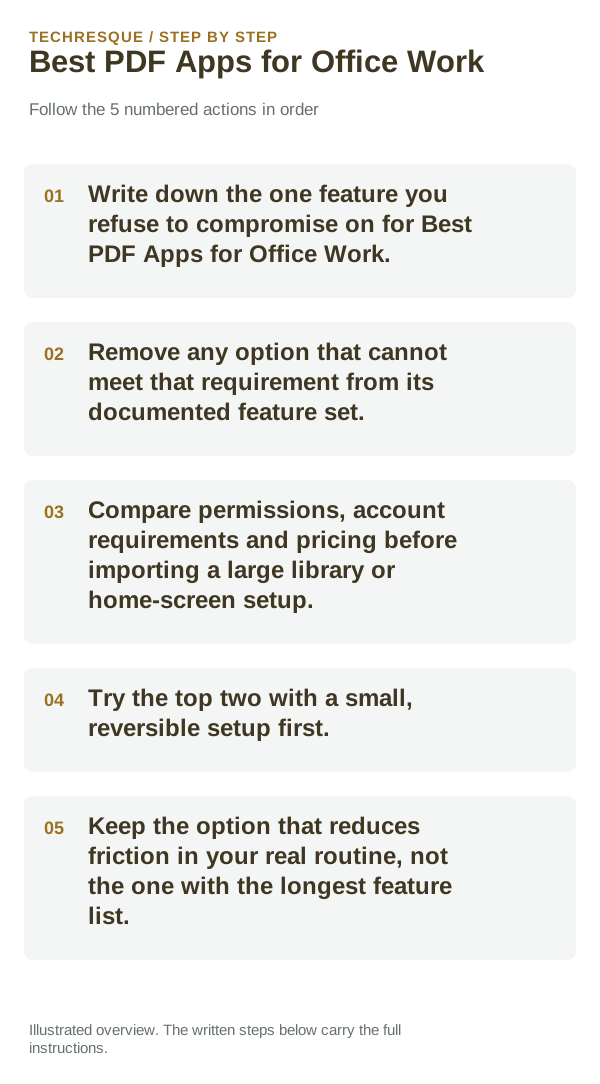
How to choose without installing everything
- Choose one of your own files and check whether the document tasks and privacy constraints of your workflow works in the format and workflow you actually use.
- Do not assume that a reader or PDF editor supports every format, export or editing action; confirm the exact operation in the current publisher listing.
- Check the current Play listing and in-app feature gates for price, ads, account, offline access and processing location. Those terms can change, so verify them before importing private documents.
- Use a copy of one representative file, export it, and reopen the result in another viewer. Keep the original until page order, text, annotations or signature meet your need.
- Keep it only if it passes the check for the document tasks and privacy constraints of your workflow and the trade-off works in your day-to-day use.
Bottom line
For best pdf apps for office work, decide whether you need true PDF editing, annotation, scanning, signing or just viewing. PDF Studio is the first option to compare for this task, with the others making sense for different workflows.
Frequently asked questions
Do I need the option with the most features?
No. For handling work PDFs on Android, start with the document tasks and privacy constraints of your workflow; extra features do not compensate for a missing requirement.
Which feature should decide my choice?
Start with the document tasks and privacy constraints of your workflow. Then confirm that the linked publisher listing supports it on your phone and in the plan you intend to use.
Should I move all my data or settings immediately?
Use a copy of one representative file, export it, and reopen the result in another viewer. Keep the original until page order, text, annotations or signature meet your need.
Official sources and further reading
PDF editing features vary by app, operating system and plan. Keep an original copy before optimizing, converting or annotating a document.