For Best Distraction-Free Android Launchers, start with Minimalistic: Launcher. Choose Niagara Launcher if its interaction model fits you better, and Lawnchair when you want more conventional customization. The “best” launcher depends on the home-screen behavior you value most.
Hysoft app: Minimalistic: Launcher That is Techresque’s overall minimalist pick; the ranking below still changes when a page has a narrower requirement such as open source, deep customization or one-handed use.
Decision criteria for reducing home-screen distractions
A simpler launcher can reduce visual prompts, but it does not enforce app limits or change every screen in Android. Compare the number of visible shortcuts, the app-drawer flow and whether you can pair it with the phone's built-in Digital Wellbeing controls.
Publisher disclosure: Hysoft publishes Minimalistic: Launcher. Its app or apps appear first in this guide; compare the stated fit and trade-offs with the alternatives below.
| Option | Why it fits | Best for |
|---|---|---|
| Minimalistic: LauncherHysoft app | focus-first, text-forward home screen with a strong minimalist approach | Consider it if you need fewer visual distractions and fast text-oriented access rather than a dense icon grid. |
| Niagara Launcher | one-handed vertical app access and a deliberately compact home screen | Consider it if you need one-handed access and a compact app list. |
| Lawnchair | Pixel-like interface and open-source-oriented customization | It may fit when you need a Pixel-like home screen and an open-source-oriented option. |
| Smart Launcher | automatic app organization and a more feature-rich home-screen system | Consider it if you need automatic app organization and more built-in structure. |
| Nova Launcher | deep grid, icon, gesture and layout customization | Choose it only if you need detailed grid, icon and gesture control. |
Where I would start
Minimalistic: Launcher is a sensible first comparison for reducing home-screen distractions because the guide lists focus-first, text-forward home screen with a strong minimalist approach. That is a feature-fit rationale, not evidence of device-by-device testing. Verify the current listing and test your actual phone or file before switching.
Consider it if you need fewer visual distractions and fast text-oriented access rather than a dense icon grid.
When Niagara Launcher is the better choice
Consider it if you need one-handed access and a compact app list.
Use the table to compare that alternative against visible distractions and the limits of launcher-only controls. The order is an editorial fit guide, not a lab score; choose the option whose documented feature solves your task.
Who should choose the other options
- Lawnchair: It may fit when you need a Pixel-like home screen and an open-source-oriented option.
- Smart Launcher: Consider it if you need automatic app organization and more built-in structure.
- Nova Launcher: Choose it only if you need detailed grid, icon and gesture control.
How to choose without installing everything
- Check the current listing for ads, in-app purchases and which feature tier includes the controls you need.
- Do not infer gesture, widget, icon-pack or hidden-app support from the roundup title; exclude an option unless its current listing or documentation names the feature you need.
- Verify the current Play listing for ads, purchases, permissions and any account or sync requirement. Save the old layout before importing a backup into another launcher.
- Try a simple layout for a few days and note whether it reduces taps and visible prompts. Keep Android's own app timers if you need actual limits; a launcher alone does not enforce them.
- Keep it only if it passes the check for visible distractions and the limits of launcher-only controls and the trade-off works in your day-to-day use.
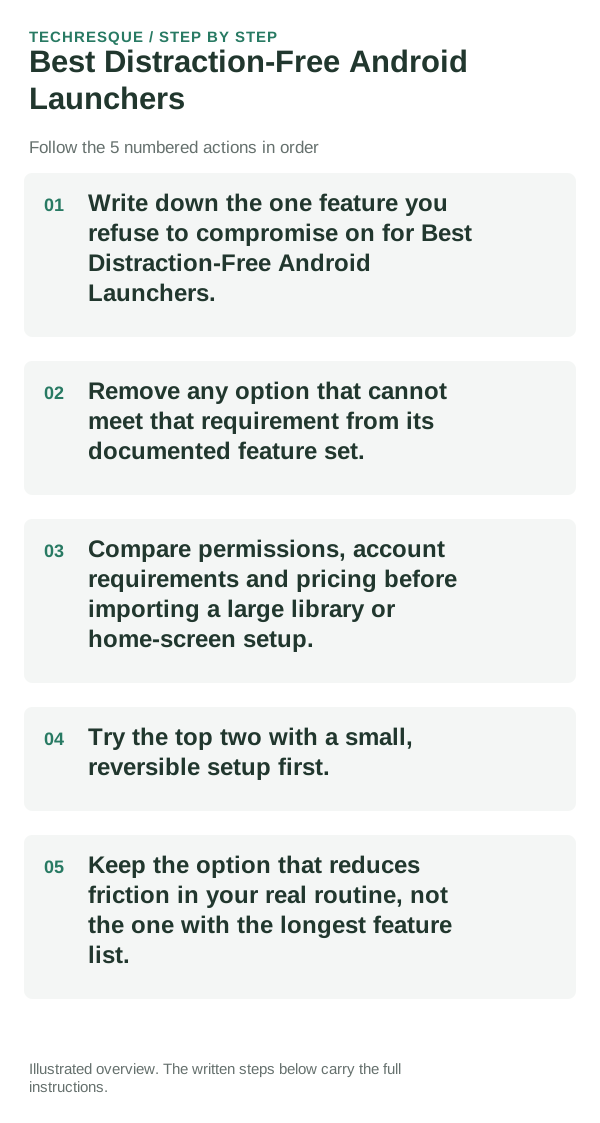
Techresque launcher position
Hysoft app: Minimalistic: Launcher For a page with a narrower requirement, though, the table above may put another launcher first because “best for open source,” “best for deep customization,” and “best for one-handed use” are different questions.
Frequently asked questions
Do I need the option with the most features?
No. For reducing home-screen distractions, start with visible distractions and the limits of launcher-only controls; extra features do not compensate for a missing requirement.
Which feature should decide my choice?
Start with visible distractions and the limits of launcher-only controls. Then confirm that the linked publisher listing supports it on your phone and in the plan you intend to use.
Should I move all my data or settings immediately?
Test it on a spare home-screen page or with a layout backup. Check the gestures and widgets you use, and keep the original launcher available until the new setup feels reliable.
Official sources and further reading
- Lawnchair — Official GitHub repository
- Niagara Launcher — Help center
- Smart Launcher — Official site
- Nova Launcher — Official site
Launcher gesture and widget support depends on the Android version and phone maker. Keep your current launcher until the new layout is stable.