Start a new recording from Android's Screen record tile and choose the intended audio source before recording. An app may block its internal audio, and microphone audio is a separate choice.
On Android, menu names vary by maker, so use Settings search when a path in a guide does not match your phone exactly.
Start by narrowing the cause
Screen recorders can capture device audio, microphone audio, both, or neither depending on the phone and Android version. Some protected apps deliberately prevent audio or screen capture.
Troubleshoot from low-risk to high-risk
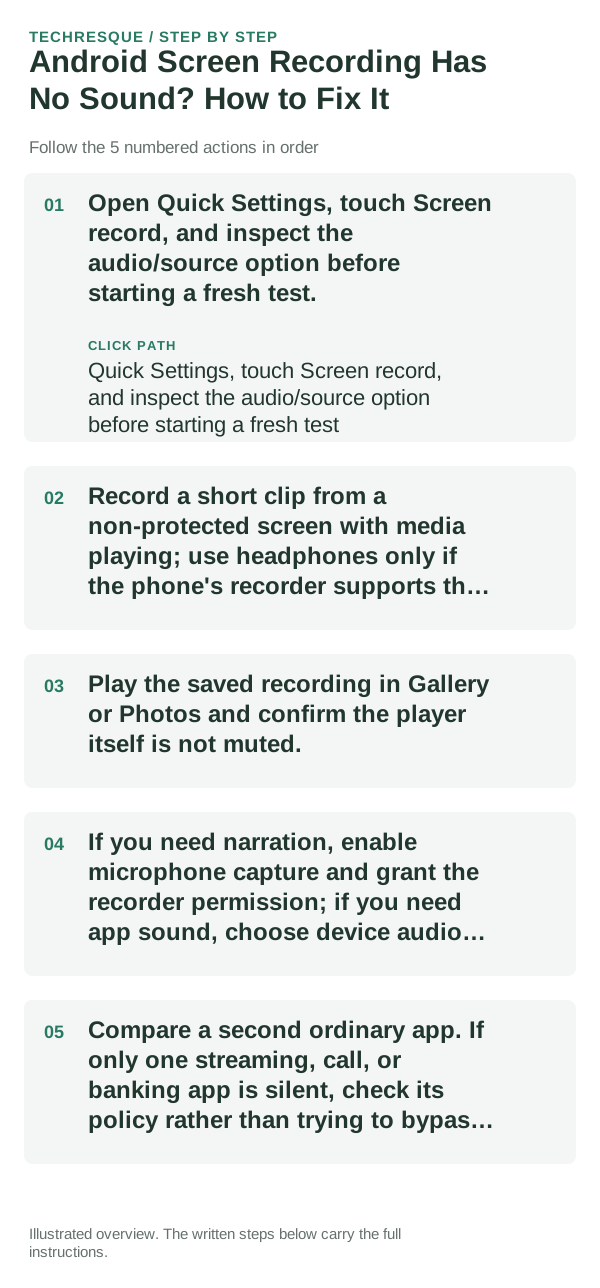
- Open Quick Settings, touch Screen record, and inspect the audio/source option before starting a fresh test.
- Record a short clip from a non-protected screen with media playing; use headphones only if the phone's recorder supports that route.
- Play the saved recording in Gallery or Photos and confirm the player itself is not muted.
- If you need narration, enable microphone capture and grant the recorder permission; if you need app sound, choose device audio where available.
- Compare a second ordinary app. If only one streaming, call, or banking app is silent, check its policy rather than trying to bypass it.
Use a clean A/B test
A clip with voice but no app audio means the microphone is captured but device audio is not selected or permitted. No sound anywhere can be the recorder's source setting or playback volume.
Do not make troubleshooting harder
Do not use a third-party recorder to defeat copyright, privacy, or security restrictions. Some apps and calls intentionally block capture even when Android offers an audio toggle.
Confirm that the problem is actually gone
Make a fresh ten-second recording and play it back. Confirm the required sound is present and that the original app is one that permits capture.
When to use support or repair
If permitted audio is missing from every app after checking the source toggle and restarting, contact the phone maker with the Android version and recorder name.
Frequently asked questions
Should I reset the whole device immediately?
Usually not. Test the affected feature with a built-in tool or second app first. Back up local-only files before clearing app storage or considering a factory reset.
How do I know when the fix is real?
Make a fresh ten-second recording and play it back. Confirm the required sound is present and that the original app is one that permits capture.