
The keyboard is a separate input app. If it disappears only in one field, the app may be handling that field specially; if it vanishes everywhere, check the active keyboard and system state. Tap a basic text field in Settings or Messages and compare it with the app where the keyboard disappears. Open Settings > System > Keyboard/On-screen keyboard and confirm a trusted keyboard is enabled and selected.
Android Settings labels differ across Pixel, Samsung, and other brands; search Settings for the named control and change one item at a time.
What this symptom usually means
The keyboard is a separate input app. If it disappears only in one field, the app may be handling that field specially; if it vanishes everywhere, check the active keyboard and system state.
- No on-screen keyboard is selected as the default input method.
- The app uses a password, secure, or custom field that changes keyboard behavior.
- A third-party keyboard crashed or lost its update.
- A hardware keyboard or accessibility setting suppresses the on-screen keyboard.
- The issue began after a keyboard/Android update or low-storage warning.
Use this order so you can identify the cause
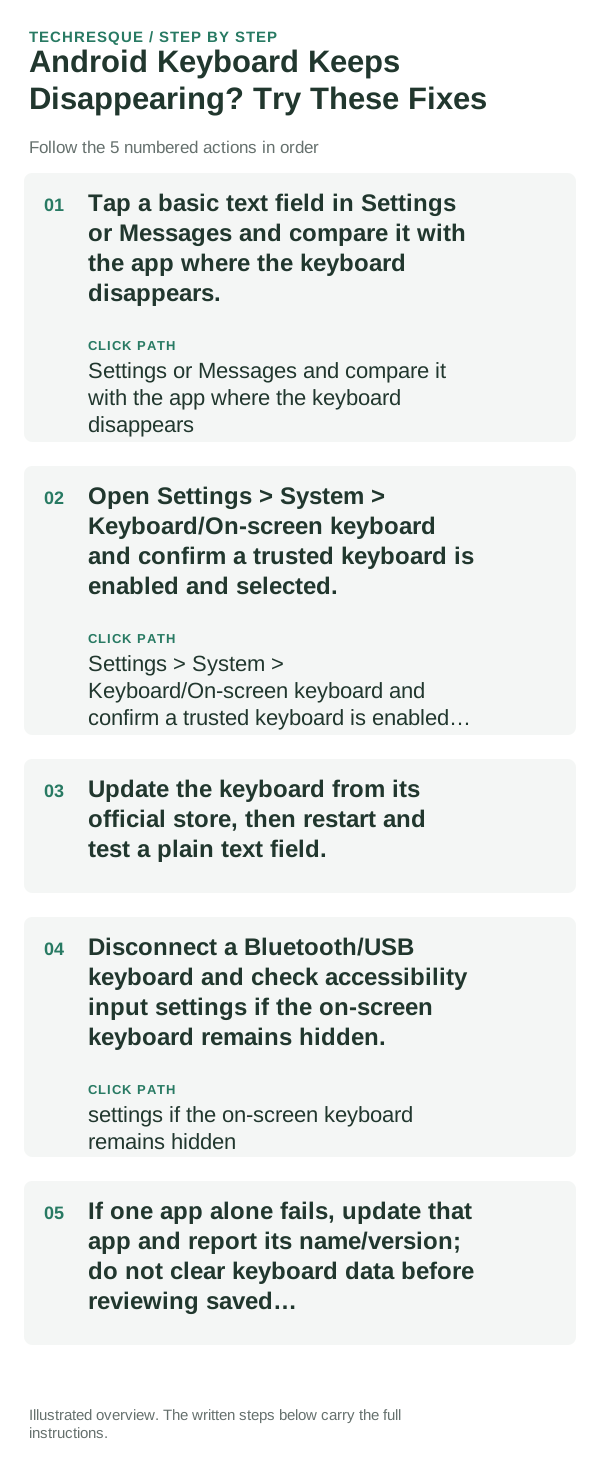
- Tap a basic text field in Settings or Messages and compare it with the app where the keyboard disappears.
- Open Settings > System > Keyboard/On-screen keyboard and confirm a trusted keyboard is enabled and selected.
- Update the keyboard from its official store, then restart and test a plain text field.
- Disconnect a Bluetooth/USB keyboard and check accessibility input settings if the on-screen keyboard remains hidden.
- If one app alone fails, update that app and report its name/version; do not clear keyboard data before reviewing saved dictionary/settings.
What each result tells you
Use the same plain text field in two apps; this identifies whether the keyboard or one app's field is responsible. Menu names vary by device.
Use the same plain text field in two apps; this identifies whether the keyboard or one app's field is responsible. Menu names vary by device.
Shortcuts that usually waste time
- Do not disable every input method at once.
- Avoid clearing keyboard data if you want to preserve learned words or settings.
Verify before you move on
Use the same plain text field in two apps; this identifies whether the keyboard or one app's field is responsible. Menu names vary by device.
When to use support or repair
If several apps fail after updates and a restart, compare Safe Mode if supported. Swelling, unusual heat, damaged ports or shutdowns need service.
Note the phone model, Android version, affected app or setting, exact message and whether restarting or Safe Mode changes the result.
Frequently asked questions
What should I check first?
Tap a basic text field in Settings or Messages and compare it with the app where the keyboard disappears. Open Settings > System > Keyboard/On-screen keyboard and confirm a trusted keyboard is enabled and selected. Update the keyboard from its official store, then restart and test a plain text field.
Should I reset the whole device immediately?
Usually not. Test the affected feature with a built-in tool or second app first. Back up local-only files before clearing app storage or considering a factory reset.
How do I know when the fix is real?
Use the same plain text field in two apps; this identifies whether the keyboard or one app's field is responsible. Menu names vary by device.