Home-screen icons can appear missing or resized because the launcher layout, display scale, app drawer, or default home app changed. The app itself may still be installed. Search the app drawer or Settings > Apps to confirm the app is installed before reinstalling it. Check Home screen grid, icon size, display size, and simple mode; change one value and compare.
Android Settings labels differ across Pixel, Samsung, and other brands; search Settings for the named control and change one item at a time.
Why this can happen
Home-screen icons can appear missing or resized because the launcher layout, display scale, app drawer, or default home app changed. The app itself may still be installed.
- Display size or launcher grid/icon-size settings changed.
- An icon was removed from the Home screen but the app remains in the drawer.
- A launcher update reset layout or changed its default role.
- A simple/easy mode or work profile hides selected apps.
- Clearing launcher data would erase the layout without fixing the underlying setting.
Use this order so you can identify the cause
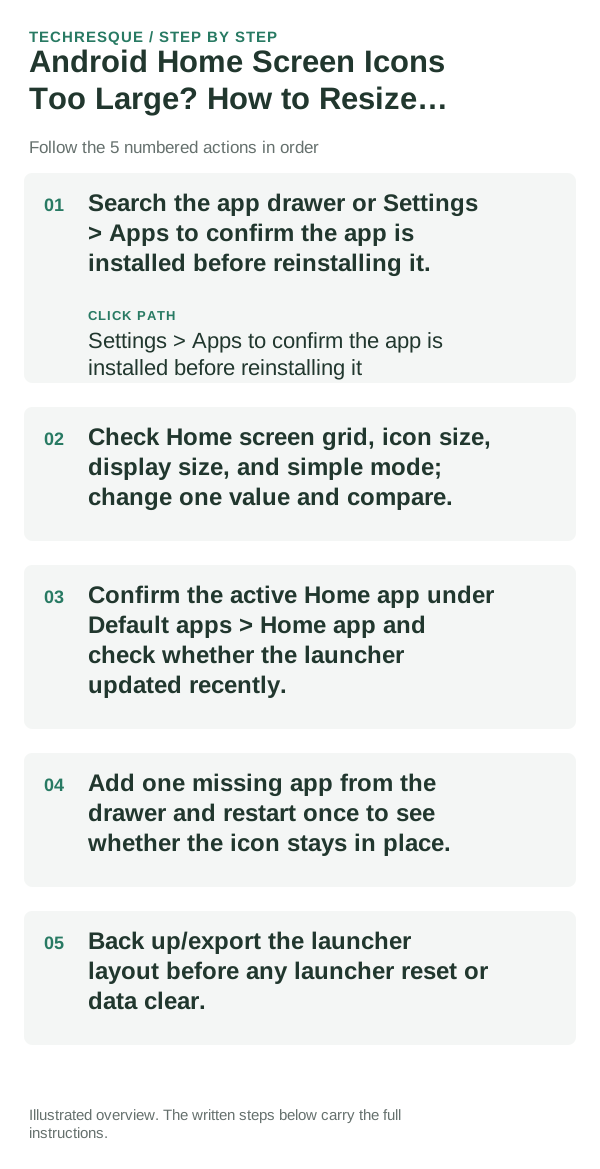
- Search the app drawer or Settings > Apps to confirm the app is installed before reinstalling it.
- Check Home screen grid, icon size, display size, and simple mode; change one value and compare.
- Confirm the active Home app under Default apps > Home app and check whether the launcher updated recently.
- Add one missing app from the drawer and restart once to see whether the icon stays in place.
- Back up/export the launcher layout before any launcher reset or data clear.
A quick way to narrow it down
Test one icon after checking the active launcher and display scale; note the original grid so the result can be reversed.
Change one widget, gesture or launcher setting at a time. Keep the original value so you can reverse a change that makes the phone harder to use.
Do not make troubleshooting harder
- Do not clear launcher storage before exporting the layout.
- Do not reinstall an app until Settings confirms it is absent.
How to confirm the fix
Test one icon after checking the active launcher and display scale; note the original grid so the result can be reversed.
When to use support or repair
If restoring the previous value does not help, test the stock interface and share app/OS versions before removing a working setup.
Record phone model, Android version, customization app, exact setting changed and whether restoring the previous value fixes it.
Widgets: Pixel Theme
a pixel-inspired widget app with clock, weather, battery, music, photo, app-shortcut, device-information and productivity widgets plus matching wallpapers. Its Play listing states no data is shared or collected. It is most relevant here when the goal is a coordinated Android Home screen rather than a system-level troubleshooting fix.
View Widgets: Pixel Theme on Google Play →Frequently asked questions
What should I check first?
Search the app drawer or Settings > Apps to confirm the app is installed before reinstalling it. Check Home screen grid, icon size, display size, and simple mode; change one value and compare. Confirm the active Home app under Default apps > Home app and check whether the launcher updated recently.
Should I reset the whole device immediately?
Usually not. Undo the last setting or app change first, and back up the layout before any reset.
How do I know when the fix is real?
Test one icon after checking the active launcher and display scale; note the original grid so the result can be reversed.
Official sources and further reading
Android customization controls vary by launcher and device skin. Confirm which app supplies the Home screen, widget or gesture before changing defaults.